COM271—Task 8
Absolute Positioning with CSS
Given 9/29 | Due 10/1
Syllabus | Assignments | References and Useful Links
←Task 7 | Task 9→
Overview: Replace html tables for layout with CSS positioning using position, float, and margin attributes.
Preparation: Readings from week 5 (positioning, floating). Complete Meyer Projects 8 and 9: "Creating an On-line Greeting Card" and "Multicolumn Layout."
CSS Positioning for Page Layout
Begin by loading your html bio page, "2_html_bio.htm" (task 2) and saving as "8_absolute_positioning.shtml". (i.e., the content will be your bio picture and information. Update with links to your external screen style sheet and by replacing any navigation with the navigation server-side include. Add this new page to your navigation file with the link "absolute position."
Proceed as follows:
- Update the banner and title element with "Absolute Positioning".
- You are going to strip away the outer table, the one with cells containing a banner, navigation, and content. Remove these now, taking care to remove all table, tr, and td elements. For the moment, leave the inner, contents table alone.
- Add divs to structure banner, navigation, and content: Your banner now contains the placeholder text "logo" and the banner <h1> element. Surround this content with a div element
<div id="banner"> ---banner contents go here--- </div>. - Under your banner div, you have the #include, which references the <nav> element previously saved as the file ssi/nav.ssi. That is, navigation is already contained in a useful div.
- Contain the table with your image and bio information within another div. Use <div id="contents"> ---content image and text go here---</div>.
- Add positioned divs to your style sheet: Open the site style sheet, css/screen.css. Following Meyer 8 & 9, add selectors for the divs, and add position and offsets. It will look something like this:
div#banner{position:absolute;top:15px;left:15px;width:1000px;padding...margin...background-color...border..., etc.}
nav{position:absolute;top:120px;left:15px;width:120px;padding...margin...border...,etc.}
div#contents{position:absolute;top:120px;left:150px;width...padding...border...font...,etc.}
Adjust the offsets, top and left, so that the tops of your navigation and your contents are the same, or exactly where you want them, and so that contents appear to the right of navigation without overlapping. - Because other pages now include the <nav> element within a table cell, your positioning might not work on those pages. You may either restructure all such pages or you can undo positioning of td>nav structures with
td nav{position:static;} - Simplify the contents by removing the inner table: In step 2, we'd left the inner table containing the image and text of your bio. Let's replace it with a simpler structure and some CSS to make it work. Start by removing the table, tr, and td elements. The content div now contains your image and some text.
- Float the image: Within the image tag, add either a class or a style attribute. That is, your image should look like either <img class="my_bio_img" src=...> or <img style="float:left;..." src=...>. Then, complete the style, e.g.,
img.my_bio_img{float:left;margin:0 15px 0 55px;....} - You want to adjust the position of either the image or the text (header and paragraph elements) so that they share a common center.
- If you have a lot of text, you'll add margin to the top and bottom of the image so that the image appears centered to the left of the text.
- If the image is large and the text relatively short, add top margin to the header element of the text (e.g., <h4 style="margin-top:25px;">...) and margin to the bottom of the last paragraph of text.
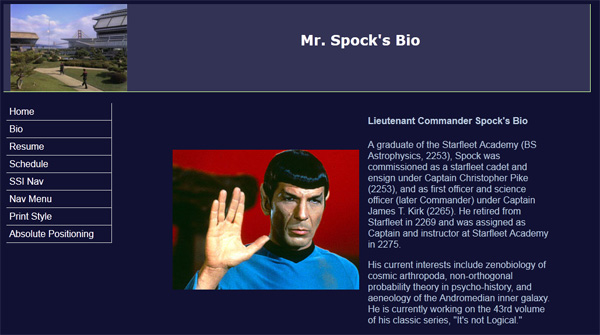
Your page should look something like the image above. The new page now contains no use of table elements for positioning. Well done! Check in your browser, save, etc.