COM271—Task 7
Style for Print
Given 9/24 | Due 9/24
Syllabus | Assignments | References and Useful Links
←Task 6 | Task 8→
Overview: Develop print style sheet.
Preparation: Readings from week 4 (media, print media). Complete Meyer-on-CSS project 6, "Styling for Print."
Styling Navigation
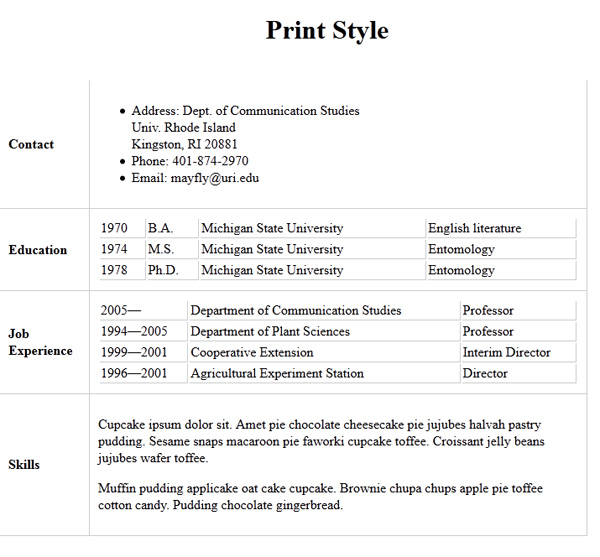
Begin by loading 3_html_resume.shtml (task 3) and saving as "7_print_style.shtml". (i.e., the content will be your resume table. Update with links to your external screen style sheet and by replacing any navigation with the navigation server-side include. Add a link to your navigation file with the text "Print Style."
Proceed as follows:
- Update the banner with "Print Style Sheet" and <title> with "Print Style".
- Create a Draft Print Style Sheet: Use your screen style sheet as a prototype for your print sheet. Open css/screen.css and save as css/print.css. Leave this file open.
- Workingon print.css, follow the pattern used in Meyer 6.
- Turn off the display for navigation (display:none); delete references in the print style sheet to navigation links, navigation hovered links, etc., as you won't need these in print media.
- Turn off the display for the logo image in the banner (display:none)
- Replace all background colors with white (background-color:#fff;); replace all foreground colors with black (color:#000;)
- Replace pixels with points (px→pt), or inches (px→in)
- Replace sans-serif fonts with serif-fonts for primary text items
- Save the print style sheet.
- Create a link to the print style sheet: Within your new page (7_print_style.shtml), add:
<link rel="stylesheet" href="css/print.css" media="print" type="text/css"> - View your page from the website using a browser and preview the print page. Make sure the content (here, the resume) shows within the 6.5 inches of printable area on the page. Make sure that navigation and other elements that make no sense in the print version are not being displayed. Check fonts. Check for black and white only in the printed version.