COM271—Task 9
Fixed Positioning with CSS
Given 10/6 | Due 10/8
Syllabus | Assignments | References and Useful Links
←Task 8 | Task 10→
Overview: Anchor banner and navigation to the screen using CSS fixed positioning.
Note: Time is being allowed this week for everyone to catch up and to complete the mid-semester check list, below. If you are done with everything, feel free to proceed to task 10, html forms.
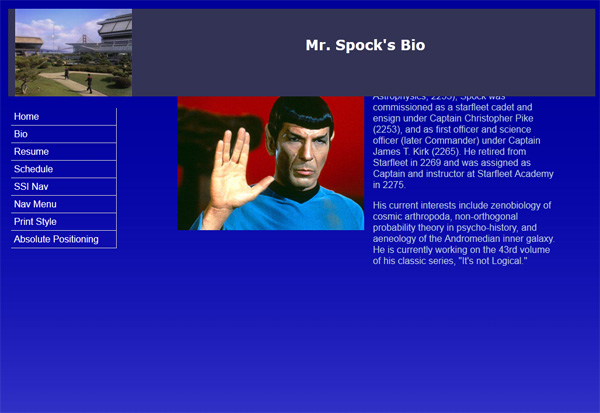
Preparation: Readings from week 6 (fixed positioning, photoshop for simple background gradient). Complete Meyer Project 12: "Fixing Your Backgrounds."
Fixed Positioning in Screen Page Layout
Load the absolute position page from the , "8_absolute_positioning.shtml," previous task (8) and saving as "9_fixed_positioning.shtml". Add this new page to your navigation file with the link "fixed position."
Proceed as follows:
- Update the banner and title element with "Fixed Positioning".
- You will be making no additional changes to the structure or content of the page.
- Fix position navigation and banner: For the banner and navigation divs/elements, change position:absolute; to position:fixed;
- We want to force the page to scroll by adding to its length. We can either add content (e.g., see "Greeked text," week 5) or we can simply add padding to the last content element. Try the latter:
<p style="padding-bottom:1000px;">...this is the end of the last paragraph of content.... - To make the scrolling content appear to move under the banner, add a z-index to the banner div
banner{position:fixed;....;z-index:3;....} - To prevent the scrolling content from becoming visible above the banner, remove the offset in banner and add an equivalent amount of upper border the same color as the page background:
div#banner{position:fixed;top:0;left:15px;border-top:15px solid #113;... (#113 is the same color as the background-color in the body rule) - Use Photoshop and the procedures oulined in week 6, "Creating a simple background gradient" create a thin vertical gradient strip, with the original background color at the top and a fade to a lighter color at the bottom. Make the image 10px wide by 1000px high, as suggested in the procedure. Save in your images folder as blue_gradient_10w_1000h.jpg or a name which describes the image.
- Add the gradient to the background of the page using a repeated background image as part of the body rule:
body{background:#113 url(images/blue_gradient_10w_1000h.jpg) repeat-x fixed;}
(You may have to adjust the url to locate the images directory: e.g., ../images/etc.)
Your page should look like the image above when scrolled down. Check in your browser, save, etc.