COM271—Task 5
Server-side include for navigation
Given 9/17 | Due 9/17
Syllabus | Assignments | References and Useful Links
←Task 4 | Task 6→
Overview: Create a single file for site-wide navigation to be used as a server-side include. Use this include to bring common navigation to the schedule and index pages. Remove the style sheet to an external file and link to it from the schedule and index pages.
Preparation: Readings from week 2 (Linking to external files ... Server-side Includes.). Complete Meyer-on-CSS projects 1 and 2, "Converting an existing page" and "Styling a Press Release."
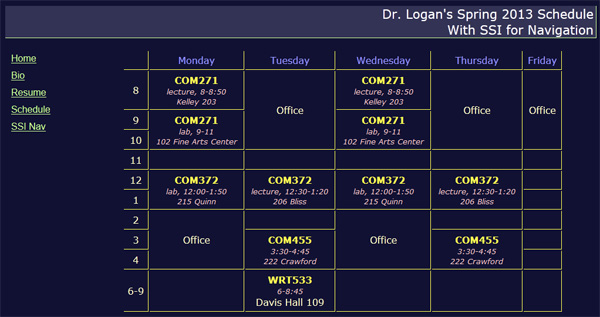
Adding a server-side include for navigation to your academic schedule
Begin by loading 4_css_schedule.htm (task 4) and saving as "5_ssi_for_nav.shtml". Note that we are using a new file extension, .shtml (see the notes on Server-side includes, above). You are going to duplicate the previous page but modify navigation. DO NOT complete this task by modifying or writing over the previous page: Your schedule will be on two pages on your site (tasks 4 & 5).
Proceed as follows:
- Update the banner text with "(your name)'s Spring 2013 Schedule<br />With SSI for Navigation". Also, update the <title> element in the header with "Server-side include for navigation."
- Note that you are making no changes to your schedule in the content area.
- To expedite coding, open your index.html page, highlight and copy the navigation links. That is, those lines of code are now on your computer's clipboard.
- Create an external navigation file: Open a new document (File > New, choose "library item", click the "create" button).
- Save the document (File > Save or control-S): On the "Save As" Dreamweaver menu, click on the "new folder" icon
( );
);
name this folder "ssi". Click to be sure you are inside the new ssi folder, then save the file as "nav.ssi". - Highlight the <meta...> tag completely (you don't need it, so paste over it), then paste (File > Paste or use the keyboard shortcut "Cntl-V") the contents of the clipboard (i.e., the navigation links that you copied in step 2). Add an additional link to the current page (see next step).
- Your nav.ssi file should look something like this:
<p><a href="index.htm">Home</a></p>
...
<p><a href="5_ssi_for_nav.shtml">SSI for Nav</a></p> (note the .shtml file extension again).
Note also that this file does not contain any other html elements, just the fragment of a page that contains links to other pages. - Create a server-side include link to your navigation file: Within the page, replace any navigation links left from the previous task with
<!--#include file="ssi/nav.ssi"--> - Save the page.
- Create an external style sheet: Open a new document (steps 4 & 5) and folder. Name the folder "css" and in the folder save the document as "screen.css."
- Highlight all of the style sheet on your new page (i.e., 5_ssi_for_nav.shtml, the page you've been working on. Cut (File > Cut or cntl-X). Move to the screen.css tab, highlight the <meta...> tag, and paste the style sheet (similar to what you did in step 6). Very important: Remove the first and last lines (<style...> and </style>); there should be no html left in this file. Only the CSS selectors and rules remain in screen.css.
- Create a link to your external style sheet: Back on the new page, in place of the recently cut style sheet, enter
<link rel="stylesheet" href="css/screen.css" media="screen" type="text/css"> - Save and test the page to make sure you are linking to the external style sheet. If not, check the href value in the link (go up one level using ../css/screen.css, etc.).
Update your home page (index.htm)
If it is not already open, open your file index.html.
- Replace all current navigation links with the same include
<!--#include file="ssi/nav.ssi"-->. - Replace all screen style sheet lines with the link to your external style sheet (as in step 12).
- Save your home page as index.shtml. In both your local site and on the server, delete the old index.htm (or .html).
- You now have a site with five pages. The home page (index.shtml) and this new page both have links to all pages. Finish this assignment by replacing the bio, resume, and first schedule pages with updated pages that contain the #include link; save each of these pages with a .shtml extension and delete the .htm or .html versions on both the local file and the remote server.
- Don't forget to also change the new navigation file (ssi/nav.ssi) to change each of the href addresses from .html to .shtml; save this file and check all navigation by looking at your site through a browser.
(Note that server side includes only work when you have a server to do the parsing (looking for the include) and file insertion. If you are using Dreamweaver's browser to look at the local version of your page, you won't see any navigation because your local machine and Dreamweaver are not servers!)
Stop at the grocery store or your favorite watering hole on the way home this evening and buy yourself a special treat. You deserve it!