COM271—Task 4
Online semester schedule
Given 9/15 | Due 9/15
Syllabus | Assignments | References and Useful Links
←Task 3 | Task 5→
Overview: Improve table-building skills by using rowspan and colspan attributes and <thead> and <th> elements.
Preparation: Readings from week 3 (inline, embedded, and external styles; CSS selectors and rules). Complete Meyer-on-CSS projects 1 and 2, "Converting an existing page" and "Styling a Press Release."
Styling a table for your academic schedule
Begin by loading 3_html_resume.htm (task 3) and saving as "4_css_schedule.htm"
Proceed as follows:
- Update the banner text with "(your name)'s Spring 2013 Schedule". Also, update the <title> element in the header with the same text.
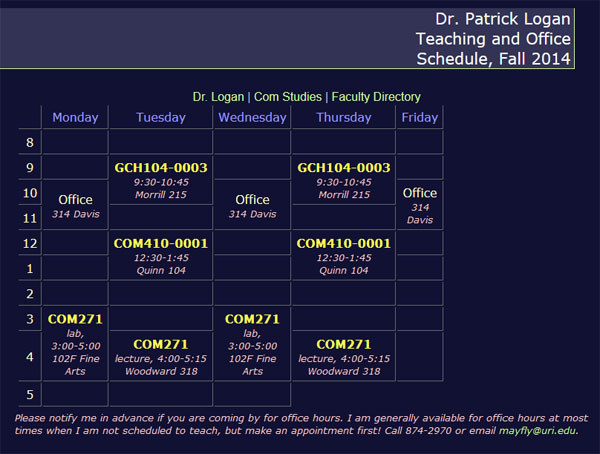
- Replace the resume of the content cell with an 800 pixel-wide table, containing six columns and 11 rows.
- Make a header row: For the first row of your table, change the table data (td) tags into <th>.
- Fill in the header row: Leave the first th cell blank (i.e., contains —non-blank space character code). Enter Monday through Friday in the 2nd through 6th th cells.
- In the first column of rows 2-10, enter the numbers 8, 9, 10, 11, 12, 1, 2, 3, and 4. (The row labeled "8" is for the 8:00-9:00 period.) In the last row, enter "6-9" in the first column. Alternatively, delete this entire row if you have no evening courses.
- Finding the correct row and column for each course in your schedule, enter the course code and title; on the following line, enter the building and room number.
Note:
Use of rowspan: As in the illustration, some of your courses may span two or more rows of your table. For example, our lab spans both the 4 and 5 rows. Enter the information in the upper-most cell (here, the row for 4-5 classes) and add the rowspan attribute to indicate that this cell will now span two rows
<td rowspan="2">COM271: Web Development (lab)<br />102 Fine Arts Center</td>
Because this cell will now intrude into the next row, you must remove the appropriate cell in that row (here, the 5 row); be careful to delete the correct td cell, and check after each change by saving the page and looking at the result in a browser before going ahead.
Use of colspan: Although I didn't use this in the illustration, you may want to span several columns in a row. For example, if I wanted to indicate that I was scheduling lunch each day during the 11-12 slot, I'd use colspan and delete the appropriate number of (td) cells:
<tr><td colspan="5">Lunch Hour</td></tr>
- Using html class or style attributes, spans, or other structural markup, tag course codes / titles, etc. Using some of the CSS selectors and properties you have practiced in the Meyer projects (1 & 2, see above), alter font properties (font family, size, color, weight), backgrounds (e.g., in the table column headers row), or border effects (e.g., in <td> cells) to create a pleasing visual look to your schedule, as you please.
Update your home page (index.htm)
If it is not already open, open your file index.html.
- Add a link ("CSS Schedule") after your link to your Resume page. In the Property window, enter the relative address of this page. Make sure the link appears on its own line (see task 3).
You now have a site with four pages. The home page (index.html) has a link to all three. The site pages (this one and the bio and resume pages) each have a link to the home page but not to any other pages in the site. This makes it inconvenient for the user to navigate within the site (users must go back to the home page to get from your resume to your schedule, for example, instead of being able to get there in a single click): how annoying! Time to fix this (task 5).