COM271—Task 1
Introduction to Dreamweaver, ftp, and HTML Basics
Given 1/21 | Due 1/21
Syllabus | Assignments | References and Useful Links
Task 2→
Overview: Make your first web page using Dreamweaver and transfer it to the course server using FTP.
You are going to establish a remote server site for course assignments. You are assigned an individual course folder on a server used for this course. This folder and its contents will be your course web site. You will be shown how to do this in the first lab session, where you will learn how to communicate with the server via FTP (File Transfer Protocol).
You will have an exclusive user name and password; you may create, modify, delete, read, or execute any file you put in this folder. Your web content will be accessible through the WWW. You will regularly use this site to complete assignments. You will complete this part of the assignment during the first lab session.
Preparation: There is no special preparation for this lab. You will be given an individualized sheet showing how to make the Dreamweaver FTP connection and you will be walked through the first steps on how to use Dreamweaver.
Setting up a home page for your course work (="index.htm" or "index.html")
Purpose To use basic HTML to set up a home page for the course.
In this assignment, you create a bare-bones home page, with placeholders for banner, contents that describe what is in the site, and navigation. This page will be constantly improved (replaced or upgraded) throughout the semester.
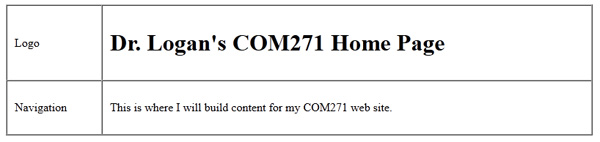
Following instructions in lab, build this initial home page inside a 2x2 html table. Using the proper table attributes (read your notes!), make the table 800 pixels wide and 500 pixels high. Using html attributes, make the first row 100 pixels high and the first column no more than 200 pixels wide. Tentatively label each cell of the table like this:
| logo | banner |
| navigation | content |
Now do these steps, checking off each as you go:
- Save the file in your root folder, following instructions in lab, as "index.htm" or "index.html" (either is correct).
- Open a browser and enter the name of your home page as the URL (i.e., "www.com.uri.edu/com271/your folder name/index.htm") to see your page on the WWW. Very important: Always view your work through the browser, using pages on the server.
Success? (Failure is not an option!) Congratulations, web author.
- Replace the word "banner (above)": Enter an H1 element containing "(Your name)'s Home Page" or some such title for the entire page.
<h1>Brad's COM271 Home Page</h1> - Replace the word "content" (above): Enter a paragraph describing the contents of the page
<p>This is the home page for my COM271 website.</p>
or something similar. - For now, leave "navigation" and "logo" as they are. We'll come back to them shortly.
- Save this page once again. Look at it in the browser (refresh the browser page to see the changes you've just made on the server) to be sure that your changes are permanent. You are now ready for task 2, making an HTML Bio Page.
How Will This Assignment be Graded?
This assignment is worth 5% of your final grade. Points will be awarded for:
- Setting up Dreamweaver FTP site to include local and remote info. (2)
- Site includes index.htm(or .html) with a banner, navigation, and content as above. (2)
- Html attributes to set the size and appearance of the layout table (e.g. height, width, bgcolor, cellpadding). (1)
Points may be deducted for careless work or unexcused lateness.