COM271—Task 12
JavaScript for Advanced Form Validation
Given 3/23 | Due 3/25
Syllabus | Assignments | References and Useful Links
←Task 11 | Tasks 13 & 14→
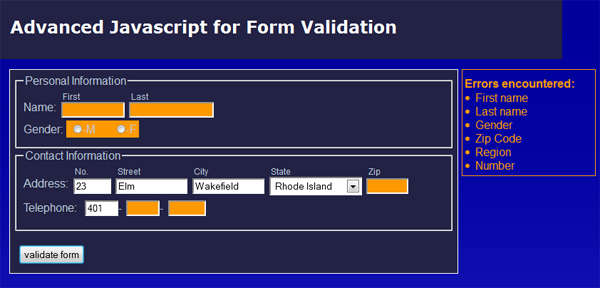
Overview: Write javascript code to check form input, reporting any errors using html and text, all under the control of javascripts. That is, you are going to rebuild the scripts you created in the previous task by changing the composition of the string of error messages from one intended to be output via a javascript alert( ) message into a string composed of html tags and texts. You are also going to alter the background color of any form input box that contains an error. Finally, the built string of error messages will be completed and output as text contained within a predesignated div.
Preparation: Readings from week 9 (Javascript functions, form validation) and completed task 11.
Form Feedback via Error Messages Written with Javascript InnerHTML
Load the form from the previous task and save as "12_advanced_validation.shtml". Be certain to keep work on this script on a separate page from work on the simple alert-message-based validation script of the previous task.
Proceed as follows:
- Update the banner and title element with "Advanced Javascript Form Validation" and add a link to this page from the navigation ssi.
- Set up your HTML form page: Modify the link to the external script file by making it look like this:
<script src="scripts/adv_validator.js" type="text/javascript" ></script>
We'll create this new file in a moment. - Anywhere on the page (perhaps, just before the <form> tag), add a div that will serve as a target for html and text generated by the validation functions of your javascripts:
<div id="errors"> </div> - In your style sheet (make one on the page, not in the external css file), style and position this error div, e.g.
div#errors {position:absolute;top:250px;left:550px;visibility:visible;color:red;border:1px solid red;padding:5px;...etc.}
Adjust the top and left offsets so that the box appears to the right of and approximately even with the top of the form. Once the box is positioned, change visibility to "hidden." You now have a hidden placeholder for text, which you create in your scripts. - NOTE: Prevent the form from executing: The event handler in the html form contains a return value:
<form action="#" ... onsubmit="return validate();">
When the function is called—when you click on the submit button and the onsubmit event handler calls validate()—the function returns either true or false to the event handler, which prevents (if false) or allows (if true) the form to call the page specified in action=. Here, the action takes the value "#" which causes the page itself to be called (reloaded). If there was an error message written by the javascript, it would disappear when the page was reloaded. We want to prevent the page from being reloaded.
To prevent the page from reloading, make certain that in your validate() script, no matter whether there is an error or no errors, the function ends with return = false; This will allow any message (error or statement of correct form filling) generated by the javascript to appear on the page. - Modify the scripts from the previous exercise: In the previous task, you created a simple alert script, scripts/validator.js. Open this and save as scripts/adv_validator.js. Leave this file open; it is the main focus of this exercise. (Note that we already created a link from your form page to this file, in step 2, above.) The original script creates a blank string, then systematically calls error checking functions for each input field in the form. Each time there is an error detected, an error message is added to the string of errors. We'll leave most of that code alone, with a couple of changes only.
- Each function includes a line of code to extend the error string, using whatever characters were passed to it—as the variable helpermsg—to convey the appropriate error source. Modify this message to create an html string. You may, for example, create a string of paragraphs or a string of list items. Here, we're adding a list item to the string:
strError=strError+'<li>'+helpermsg+'</li>'; - We also want to change the CSS of the same input field (input, select, etc.) by changing the background color to, for example, light red. Add a line following the error-string code (previous step):
elem.style.backgroundColor="#fcc";
(where elem is document.getElementById( ) for the input field we're working on). - When we re-check corrected input fields, we want them to show the original background color. Be sure to assign this orrignal color at the beginning of each error function
elem.style.backgroundColor="white"; - Finally, finish the error strong. Here, we've been building a set of list items. We and to embed them in an unordered list and preceed the list with a clarifying header, like this:
strError='<h4>Errors found:</h4><ul>'+strError+'</ul>;
(Find the place in your validate( ) function where you treat a non-blank error string and add this.) - Output the errors text: Finally, add two lines to assign the constructed string of errors to the error div and to make the error div visible:
err=document.getElementById('errors'); err.innerHTML=strError;
err.style.visibility="visible"; - (You can reset the error message div's visibility to 'hidden' at the top of the validator( ) function if you want, but this isn't strictly necessary because once you start to validate, some message is always going to be visible in the div (either errors or a message saying the form is correct and ready to submit.)
That's it. Great form feedback from visual and textual cues generated by dynamic html. Well done!