COM271, Week 3
Photoshop
Cropping and Sizing Images
Syllabus | Table of Pages | Assignments | References and Useful Links
Copying a Web Image
Typically, we obtain an image from a camera or the web and we want to do a few things in photoshop. On this page, I'll show what to do to
- copy and paste into photoshop
- resize
- crop
an image. We'll also do this in lab.
Let's say that I want to build a web site about nature, and I decide that a beautiful dragonfly image would make my site much more attractive. I decide to use an image that I get from google, which has an "image" option. If you'll click here, you'll see something like what I get from google (the page will change all the time as google's search engine adds or changes its image records).
The image I clicked on took me to a page selling computer wallpapers. Important step: Hover over the image first. Then,on my PC, a right-click on the mouse (Mac, control+click, I think) brings up a menu
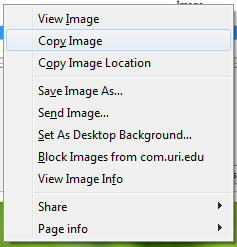
...and clicking on "view image info" gives me this:
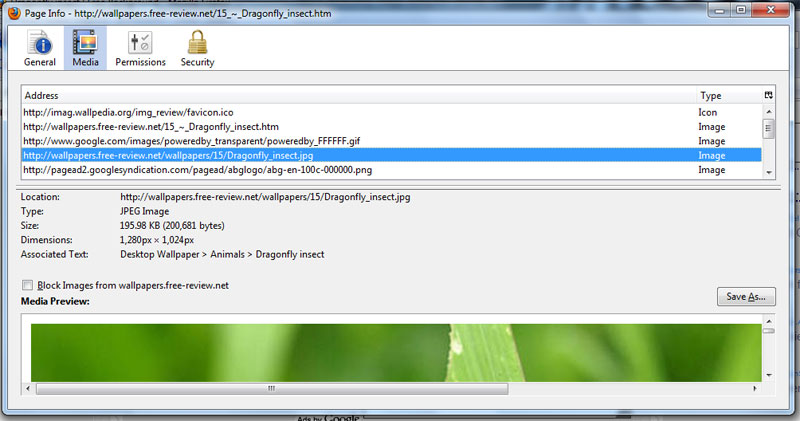
The information of most interest to me is file size (195+ kb) and dimensions (1,280 x 1,024 pixels). After all, this is wallpaper, so it should pretty much fill up a whole screen. Let's see. I'll just copy and paste (I'll show you how in a second) and... (we'll continue writing below the image ...)
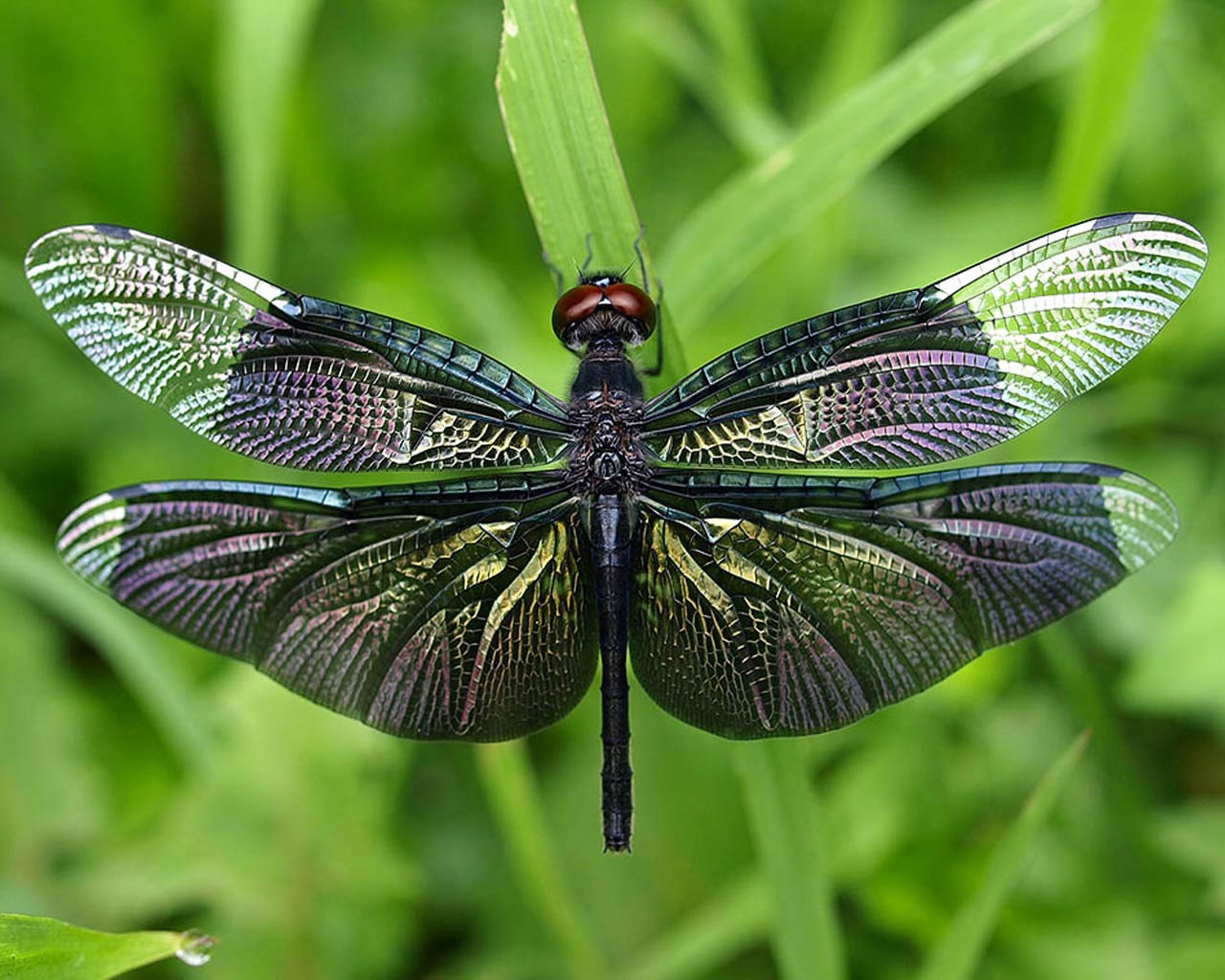
Wow! That's a big dragonfly!
How to copy an image from your browser: To copy an image, hover your mouse over the image and right click (Mac control-click) to bring up that menu (above) again. This time, click on "copy image." This will make a copy of the image and keep it on your computer's clipboard (google "clipboard" if you need to have that explained).
How to get the copy into photoshop: In lab, we have photoshop, the Adobe ® program that is the industry standard for doing things with images. (One of the best developers I've ever met uses only Dreamweaver and Photoshop for his web work (plus other programs to make web videos, etc.). Open it.
Photoshop's main menus run along the top of the page. Click on "File" and "New" and you'll get something like this (screenshot of Photoshop CS3):
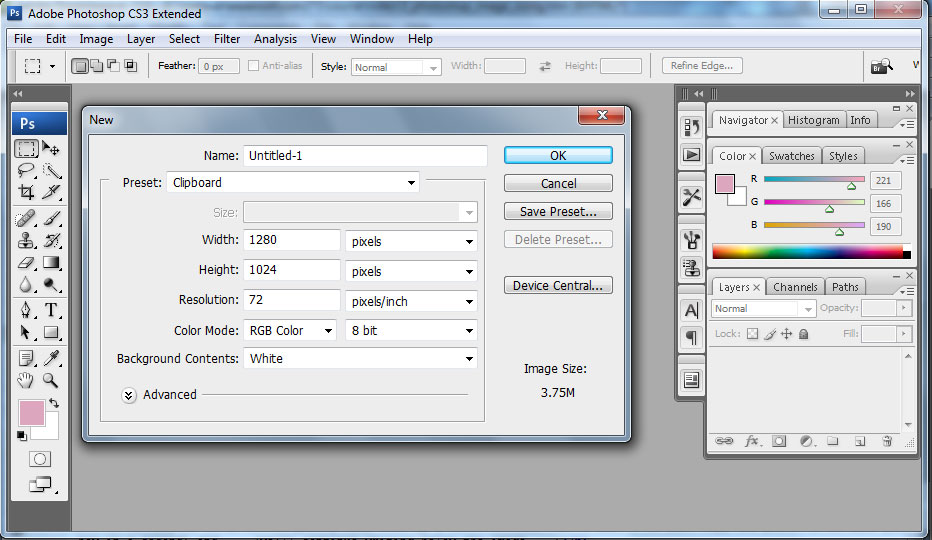
Notice that the window already has something the same size as the clipboard image. Photoshop just does that: it's checked the image that we just copied, getting ready for us!
Click OK and you'll get a blank window. Move the mouse into this window and paste (PC: alt-v, Mac: cmd-v). Your image from the clipboard opens in photoshop.
Resizing: To resize, use the main menu "Image" and click on the drop-down "Image size..."

I'd like a good size, but smaller, image, so I enter 500 into the box for pixel dimension > width (replacing 1280) and click ok. My image will be resized. Because I had constrained photoshop to maintain proportions between height and width (a check box), the heighth is rescaled too.
Cropping: I notice that the image has a bit more green on top and bottom, so before I am done, I want to trim this away. To crop the image, click on the "Rectangular Marquee Tool" (RED ARROW in the preceeding screen shot), move the cursor to one corner of the area that you want to preserve after cropping, drag the rectangular marquee to the opposite corner, and release the mouse. This will highlight the image. Use the Image menu, "Crop" option, and the image will be cropped:
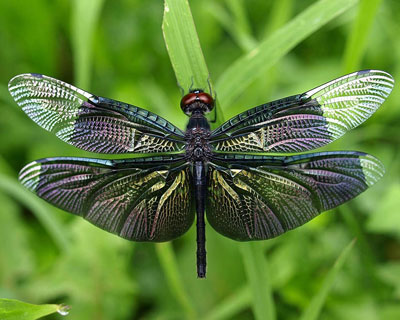
Here's a resized, cropped image, ready for my new web page (with a little CSS to help it shine):
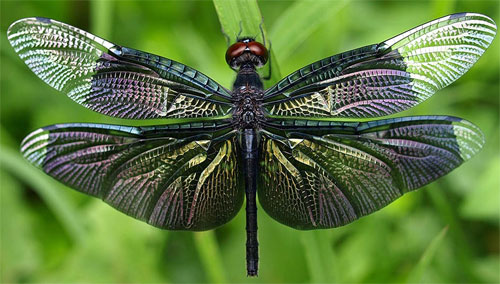
I'd encourage you to experiment (but not to waste time) with Photoshop's image menu. Black and white ("grayscale") anyone?
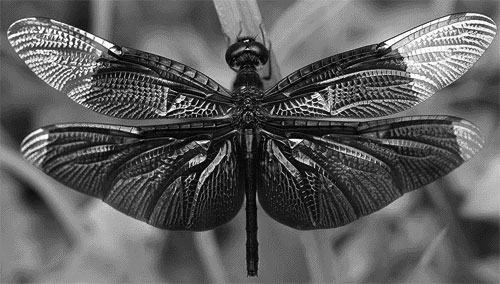
The Photoshop Image menu also makes it easy to rotate and to change the colors (hue, saturation) of an image. Enjoy!
By the way, in our previous discussion of images, I noted that large images could be crammed into smaller spaces, but that this would only waste pixels. Below is a properly rescaled image (done in photoshop) and the same giant wallpaper image from above constrained by using the html width attribute. Can you see a difference? (The left image is 238kb; that is 6.25 times more bits than the one on the right (38kb); i.e., it would take 6 times as long to download the left image. Try getting the file size information (right click | control click) for yourself!
Does knowing how to resize an image in photoshop matter to your web page? It does!