COM271, Week 3
Images
Image types (JPG, GIF, PNG). Image file sizes. Making or finding images.
Syllabus | Table of Pages | Assignments | References and Useful Links
Web Images
Electronic Images: In the beginning, the web was text, and there was monochrome upon the earth. The internet crawled. It was a dark and primitive age.
And then Mosaic spoke, saying let there be images. And there was light!
The first graphic browser, Mosaic, appeared in 1992, and with its capacity to deliver images as well as text, it is fair to say that the web as we now know it was born. But file transmission rates were indeed limited by available technology. The complexity of images meant that they needed to be small or digitally compressed, else they would take unacceptably long times to download. Nearly two decades later, it remains important to take steps to make images as quick as possible to download.
The Information Content of Images: All web images are composed of myriad colored pixels. Each pixel contains information about the intensity of three primary colors—red, green, and blue—and the relative intensity of each color determines the final color of the pixel.
Most computer screens display 72 pixels per inch, or 5184 pixels per square inch (ppi). The size of an image file is proportional to its dimensions. A square image that is twice as long and tall contains 4 times as many pixels.
Higher resolution screens have been manufactured , but 300 ppi is near the ceiling; 300 ppi is also near the limit beyond which an unaided human eye can make no further distinction. (Here's an interesting table of devices, including recent Macs and telephone displays.)
Keep in mind that print media and screens are quite different. Printers can achieve remarkable densities of ink drops, running from 300 to 4800 dots per inch; the result approaches for all practical purposes photographic resolution. But screen media are far more limited.
What Pixel Resolution Should I Use? The answer is 72 ppi. First, most devices use fewer than 150 ppi; there is nothing wrong with using the standard recommendation of 72 ppi for all web imagery. Some monitors may be able to display a higher resolution image (say, 96 ppi), but most are displaying at 72. A monitor capable of 72 ppi will sample from the pixels of a higher resolution image and make up a new image at 72. The extra pixels of the original image will be downloaded, but never used. Best (and most widely followed) advice: create web images at 72 ppi. (I've googled articles that argued this, but the articles were nonsense; sorry).
Helping the Browser by Providing Image Size Attributes: What happens if you download an image at a higher resolution? If you do not specify the height and width attributes of the image (e.g., <img scr="mydog.jpg" width="150px" height="300px">), the image will be displayed very large, depending on its resolution.
What happens if I display a high resolution (say, 300ppi) and use the width and height attributes to make it fit in the size I want? The image will be sampled by the browser and displayed in the size specified, but all of the additional information downloaded with the image will be wasted. That is, it will take long to download, but display like a smaller image that could have been downloaded in much less time. I once "fixed" a URI department home page that had a 1" x 2" animated gif image that had improper resolution. It took nearly 30 seconds to download (longer off campus) and added virtually nothing to the page (nothing but download time and frustrated users).
What happens if I use a 72 ppi image that is 120px wide by 150px tall, but force (by using a width attribute) a width="360px"? The image will elongate and appear "pixelated:"
| Original (120 x 150), no size attributes < img src="../images/meyer_on_CSS_book.jpg" /> |
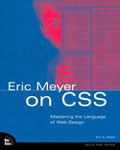 |
| Original (120 x 150) <img src="../images/meyer_on_CSS_book.jpg" width="120" height="150" /> |
|
| Stretched (360 x 150) <img src="../images/meyer_on_CSS_book.jpg" width="360" height="150" /> |
|
Why should you specify size attributes when you add an image file? The page will know how large the image will be even if it is taking a while to be downloaded. The browser will be able to set aside the space and continue to render the rest of the page while the image finishes its download. Normally, it is good practice to include size attributes for each image. Just make sure they are correct!
Image Compression
Web images are never a simple download of all the pixels in an original digital image. Instead, they are subjected to compression technologies, producing smaller files without loosing any information. How is this done? In essence, compression uses some form of run-length compression. The image is looked at as a series of horizontal rows of pixels. If adjacent pixels are the same, it is possible to provide a color value and a count of how many pixels would be identical. A solid black image, for example, could be compressed into one color and a big number of pixels. The "compressed" file would be tiny, even for a very large image. The amount of compression possible is related to the amount of color changing. (This is meant to convey the concept, if not the precise technology. For more, see links to wikipedia in what follows:)
There are three current compression technologies.
- JPEG (named after the Joint Photographic Experts Group) excels at compressing phtographs. It allows 24-bit color (millions of colors), so that on most modern screens the image retains very rich color and detail. JPEG will not allow you to make any part of the image transparent, to let the background show through. If the image is compressed too much, it will begin to blur. (More from wikipedia: JPEG)
- GIF (Graphics Interchange Format) works best for flat color artwork, where there are no changes in color (think "bar chart"), but its limit of 8-bit color limits it to 256 colors. It does allow transparency, so that if you want a logo to display over a background color, for example, you might choose a GIF format. (More from wikipedia: GIF)
- PNG (Portable Network Graphics, "ping") uses either 8-bit or 24-bit color and allows transparency. It is preferred for raster-based art such as would be used in Flash. (More from wikipedia: PNG)
JPEG and GIF are the most common formats. JPEG used for images with lots of color variation (photographs) and GIF for images with solid blocks of color (cartoons, graphs) or where you want a transparent background.
Making or Taking Images
Three of the most common ways to create the images that you want to use on a web page are to use a digital camera, create artwork with an image program (illustrator and flash are common), or use images taken from other sources.
- Digital photography: Digital cameras can capture images in formats which are easily converted into JPEG files. The very high resolution that is possible in many affordable cameras is usually far greater than you will eventually need. A medium resolution image (say, 300-600 ppi) is a useful camera setting. This doesn't waste pixels because you are not going to convert them to very high resolution print media. You may, however, want to sample part of the image (zooming in on a face and cropping the rest of the image, expanding what remains) so that the extra pixels give you adequate flexibiity for manipulating the image in photoshop.
- Illustrator or Flash: These programs create vector art, meaning solid images such as letters or logos. They can be used with photoshop to create hybrid images in either JPEG or GIF format for art work, often placed in the background, using CSS. Further discussion is beyond our current scope. (URI does have three graphic arts courses, and there are myriad hands-on-training books from Adobe ("Classroom in a Book") or other vendors where you can pick up a diverse array of skills and techniques. The Photoshop WOW and Photoshop Artistry series are fascinating; older versions can often be obtained for pennies, and these still contain an abundant array of useful techniques. Here is a sampling from an older Photoshop WOW book about making an amazing "Plastic P" (pdf).
- Google Image and Commercial Stock Images: You can use a search engine—Google has an image search capacity—or invest in a commercial source for stock images (you buy a license to use photographs or designs). Images from other sites may require copyright permissions: check the site for requirements. If there is no obvious restriction, it is common courtesy to provide a caption identifying the source, or a link back to the original page (with a title attribute to identify the source). Images gleaned from the web may be cropped or resized; image resolution should always be checked. You would be surprised at how frequently images are at much higher than needed resolution (see above).
Here is a brief description of how to use photoshop to crop, resize, and set the resolution of a digital image.