COM271, Week 1
HTML Elements—Getting Started
Syllabus | Table of Pages | Assignments | References and Useful Links
HTML is...Elemental!
HTML provides a logical structure for web pages. This is done, as mentioned in the introduction, through the use of elements. In discussing html, the word elements is synonymous with containers and tags, and for the rest of this page and the rest of the course I will use these words interchangeably. Each html element has a name. Each is surrounded by the angle brackets, < and >. Most elements occur as a set, with a beginning tag, some text, and a closing tag.
Tags for Text
There are many elements, and before we finish I will give you some places to go to look them all up. But most web pages are made with only a few tags. Let's start with elements that are used to surround text. Here they are and this is what they look like when you write them:
Headers
There are six sizes of headers, and the elements are named h1 through h6:
<h1>This is H1.</h1>
<h2>This is H2.</h2>
<h3>This is H3.</h3>
<h4>This is H4.</h4>
<h5>This is H5.</h5>
<h6>This is H6.</h6>
Paragraph
<p>This is a paragraph.</p>
Block Quote
<blockquote>Blockquote: Notice how this is set off like a...block quote.</blockquote>
Beginning students sometimes use blockquotes to indent sections of text, because this is how most browsers render this tag. As soon as we learn a little CSS, we'll see how we can use the CSS margin attribute to accomplish this.
Lists
List items can be contained inside of ordered lists (enumerated with roman numerals, letters, numbers) or unordered lists (set off with various bullet symbols):
| Ordered list, with sublist | Rendered ordered list | Unordered list, with sublist | Rendered Unordered list |
| <ol> <li>Meat</li> <li>Fruit <ol> <li>apple</li> <li>orange</li> </ol> <li>Vegetables</li> <li>etc.</li> </ol> |
|
<ul> <li>Meat</li> <li>Fruit <ul> <li>apple</li> <li>orange</li> </li> </ul> <li>Vegetables</li> <li>etc.</li> </ul> |
|
In-line elements
If you want text to be displayed in italics, boldface, or as a link, you use these tags:
<em>This is italics</em>
<strong>This is bold</strong>
<a href="#">This is a link</a>
<sup> and <sub> make superscripts and subscripts (H2O, E=mc2)
Here, we'll use text that is itself contained in a paragraph (I've tried to show you where the html would go, but obviously, this wouldn't be displayed in real life):
<p>This is a paragraph that contains <em>italicized words</em>, <strong>boldface words</strong>, and < a href="#"> <sup>*</sup> words that make up a (dummy) link</a>.</p>.
*Notice that the link also contains the attribute href, meaning hypertext reference, which normally points to the address of a web page. We'll come to that next week. Here, we've substituted # instead of an address; this link goes no where, so if you click on it, you are returned to the same page (i.e., nothing happens). —Try it!
Here's the same text without the dummied html:
This is a paragraph that contains italicized words, boldface words, and words that make up a (dummy) link.
Block and Inline Elements and the Generic <div> and <span> Tags
With a few exceptions—the inline elements <em>, <strong>, or < a href="#">—most elements are called block elements. This means that browsers will display them with space around them. Because a paragraph is a block element, by default, browsers render paragraphs with a blank line following them. Images (below) are also block elements; when they are rendered, they are usually placed on their own lines.
It is sometimes useful to be able to contain a whole section of the page within a single tag; usually this is so that we can apply styles to color or position that part of the page. Alternatively, it is sometimes also useful to contain just a word or two within a line of text. For this, there are <div> and <span> generic tags. We'll show how to use these when we get to style sheets. The div tag is a block element; the span is inline.
Here is some text contained in a div that has a css style, and within the text is a span with another css style. I'll defer explanation until we get to style sheets.
Table data
You might also enter text into a table as table data. We'll look at that separately. It would look like this:
<td>This is text as table data</td>
A few more useful tags
You may want to insert a line break to place your text on a new line, or you might like a line drawn across the page. These use <br />, the line break element, and <hr />, the horizontal rule, like this:
<p>This is some text in a paragraph and right here<br />
I'd like to break the line, and then I'd like a nice horizontal rule drawn across the page.</p>
<hr />
Note that unlike headers, paragraphs, or inline tags, these two don't actually contain anything. To save space, they are written as a single tag containing the element name, a space, and a backslash.
Images
Another tag that doesn't actually contain anything is the image tag, <img>. The image tag refers to a file stored within your site, using the attribute src (source). We'll explain this more shortly, but for now it looks like this:
<img src="images/meyer_on_CSS_book.jpg />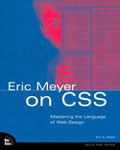
This is enough to allow us to use html to put images and text (with headers and paragraphs and line breaks and horizontal rules) on a web page, but we want more. We can refine html extensively by using html attributes and values, our next topic.
Coded Characters
Here is a question for you: If a web page uses bracketed tags to determine html structure, then why didn't the tags that I presented above (like this paragraph tag, <p>Here is a paragraph</p>) cause the browser to render the enclosed text on its own line? How did I trick the browser?
Coded characters allow you to display reserved characters like my html brackets, < (<) and > (>), as well as many characters that are not on a standard keyboard. Coded characters can be made like this: &. They start with an ampersand, contain some name, and end with a semi-colon.
Here are a few more:
- © © (copyright symbol)
- — — (2-em dash)
- ® ® (registered trademark)
- é é (e-acute, or e with an accent mark over it, as in résumé)
- (non-blank space)
Each symbol can also be made using a numerical code. For example, the ampersand can be either & or &.
Here is a listing of symbols (glyphs) and both the name and numerical codes:
http://www.designerstoolbox.com/designresources/html/.
¿Entiendes, Mendes? Hasta mañana!
You can do a lot with raw html. But you can do a lot more if you understand how to use html attributes and values, next.